
Claude Code Quick Switch to Cloudwise MaaS
Configure Claude Code to use Cloudwise MaaS and access the full Claude model series through a simple environment variable setup
Claude Code is Anthropic's official agentic coding tool that lives in your terminal. Through Cloudwise MaaS, you can redirect Claude Code to use our API gateway, giving you flexible billing and seamless access to Claude Sonnet, Opus, Haiku and more.
Table of Contents
Prerequisites
Before you begin, make sure you have the following:
| Requirement | Details |
|---|---|
| Claude Code | Installed via npm install -g @anthropic-ai/claude-code. See official docs. |
| Node.js | Version 18 or higher required. |
| Cloudwise API Key | Get your key from Cloudwise MaaS. |
Test Key: You can use this test key to try it out: ak_f58064831857443bbfc75b0b4fb9d9c3
Quick Start
The fastest way to get started — just 3 commands in your terminal:
Point Claude Code to the Cloudwise MaaS API gateway:
export ANTHROPIC_BASE_URL=https://api.cloudwise.ai/api
Replace YOUR_API_KEY with your actual Cloudwise API key:
export ANTHROPIC_AUTH_TOKEN=YOUR_API_KEY
Start Claude Code as usual:
claude
That's it! Claude Code will now route all requests through Cloudwise MaaS. You should see the Claude Code interface with model info like "Sonnet 4.6 · API Usage Billing".
Environment Variable Configuration
Claude Code uses two environment variables to connect to Cloudwise MaaS:
| Variable | Value | Description |
|---|---|---|
ANTHROPIC_BASE_URL | https://api.cloudwise.ai/api | Cloudwise MaaS API endpoint (Asia region) |
ANTHROPIC_AUTH_TOKEN | Your API Key | Your Cloudwise API key (starts with ak_) |
Complete Example
Copy and paste this entire block into your terminal:
# Configure Claude Code to use Cloudwise MaaS (Asia Region)
export ANTHROPIC_BASE_URL=https://api.cloudwise.ai/api
export ANTHROPIC_AUTH_TOKEN=YOUR_API_KEY

# Launch Claude Code
claude
Persistent Configuration
To avoid setting environment variables every time you open a new terminal, add them to your shell profile:
For macOS / Linux (Zsh)
# Add to ~/.zshrc
echo 'export ANTHROPIC_BASE_URL=https://api.cloudwise.ai/api' >> ~/.zshrc
echo 'export ANTHROPIC_AUTH_TOKEN=YOUR_API_KEY' >> ~/.zshrc

# Reload the configuration
source ~/.zshrc
For macOS / Linux (Bash)
# Add to ~/.bashrc or ~/.bash_profile
echo 'export ANTHROPIC_BASE_URL=https://api.cloudwise.ai/api' >> ~/.bashrc
echo 'export ANTHROPIC_AUTH_TOKEN=YOUR_API_KEY' >> ~/.bashrc

# Reload the configuration
source ~/.bashrc
For Windows (PowerShell)
# Set environment variables permanently for current user
[System.Environment]::SetEnvironmentVariable('ANTHROPIC_BASE_URL', 'https://api.cloudwise.ai/api', 'User')
[System.Environment]::SetEnvironmentVariable('ANTHROPIC_AUTH_TOKEN', 'YOUR_API_KEY', 'User')

# Restart your terminal, then launch
claude
Security Tip: Replace YOUR_API_KEY with your actual API key. Never share your API key publicly or commit it to version control.
Verify Connection
After launching Claude Code, verify that it's connected to Cloudwise MaaS:
Look at the bottom-left of the Claude Code interface. You should see the model name (e.g., Sonnet 4.6) followed by "API Usage Billing", which indicates it's using the Cloudwise MaaS API.
Type any message to confirm the connection works:
> how do you do?
If you receive a response, the configuration is working correctly. Notice the status bar shows "Sonnet 4.6 · API Usage Billing", confirming Cloudwise MaaS is active.
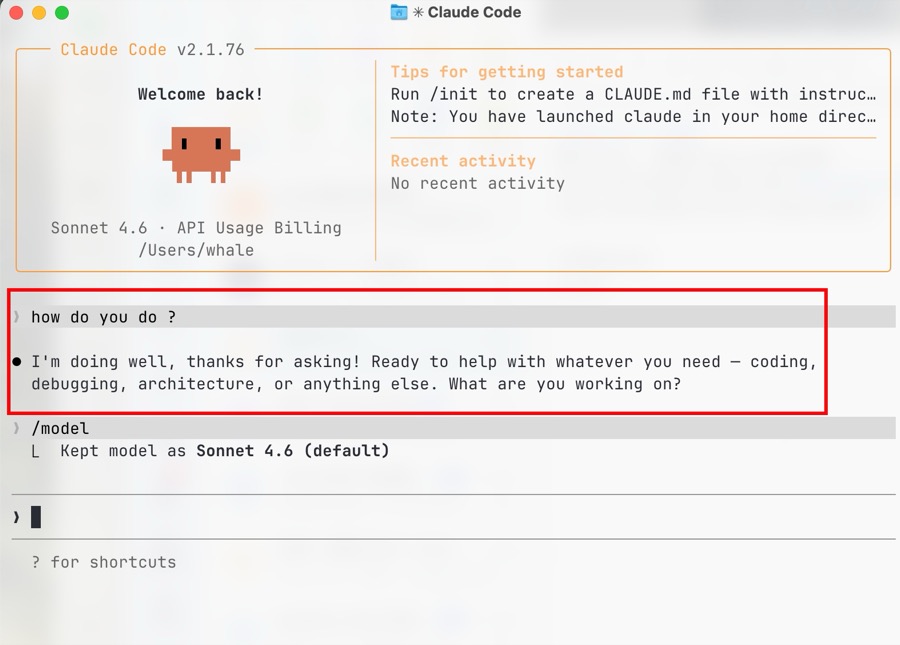
Use the /model command inside Claude Code to verify the current model:
> /model
You should see output like: Kept model as Sonnet 4.6 (default)
Supported Models
Through Cloudwise MaaS, Claude Code can access the full Claude model family:
| Model | Description | Best For |
|---|---|---|
claude-sonnet-4-6 | Latest Sonnet — fast and capable | Daily coding tasks, debugging |
claude-sonnet-4-5-20250929 | Previous Sonnet version | General coding tasks |
claude-opus-4-7 | Latest Opus — most powerful | Complex architecture, deep analysis |
claude-opus-4-5-20251101 | Previous Opus version | Complex reasoning tasks |
claude-haiku-4-5-20251001 | Haiku — fastest and most affordable | Quick tasks, high-volume usage |
To switch models inside Claude Code, use the /model command and select your preferred model.
Troubleshooting
If you see an authentication error, verify your API key is correct:
# Check if the environment variable is set
echo $ANTHROPIC_AUTH_TOKEN

# Make sure it starts with "ak_"
# If empty, set it again:
export ANTHROPIC_AUTH_TOKEN=YOUR_API_KEY
If you experience connection issues, check the API endpoint:
# Verify the base URL is set correctly
echo $ANTHROPIC_BASE_URL
# Should output: https://api.cloudwise.ai/api

# Test connectivity
curl -s https://api.cloudwise.ai/api -o /dev/null -w "%{http_code}"
Make sure no other configuration is overriding your environment variables. Check for conflicting settings:
# Check all ANTHROPIC-related environment variables
env | grep ANTHROPIC
You should only see ANTHROPIC_BASE_URL and ANTHROPIC_AUTH_TOKEN. If you see ANTHROPIC_API_KEY, unset it:
unset ANTHROPIC_API_KEY
Summary
You have successfully configured Claude Code to use Cloudwise MaaS. Here's a recap of what was set up:
| Item | Value |
|---|---|
| API Endpoint | https://api.cloudwise.ai/api |
| Auth Variable | ANTHROPIC_AUTH_TOKEN |
| Default Model | Claude Sonnet 4.6 |
| Available Models | Full Claude family (Sonnet, Opus, Haiku) |
All requests are routed through Cloudwise MaaS API gateway. Your usage will be billed through your Cloudwise account. Visit maas.cloudwise.ai to manage your API keys and monitor usage.